
BAND RITUAL
V 1.3
User Guide
Version 1.3
RITUAL AUDIO LABS
Band Ritual V1.3 packs a full vocoder engine, harmonic controls, and a flexible EQ into a single window. Here's what you're looking at.
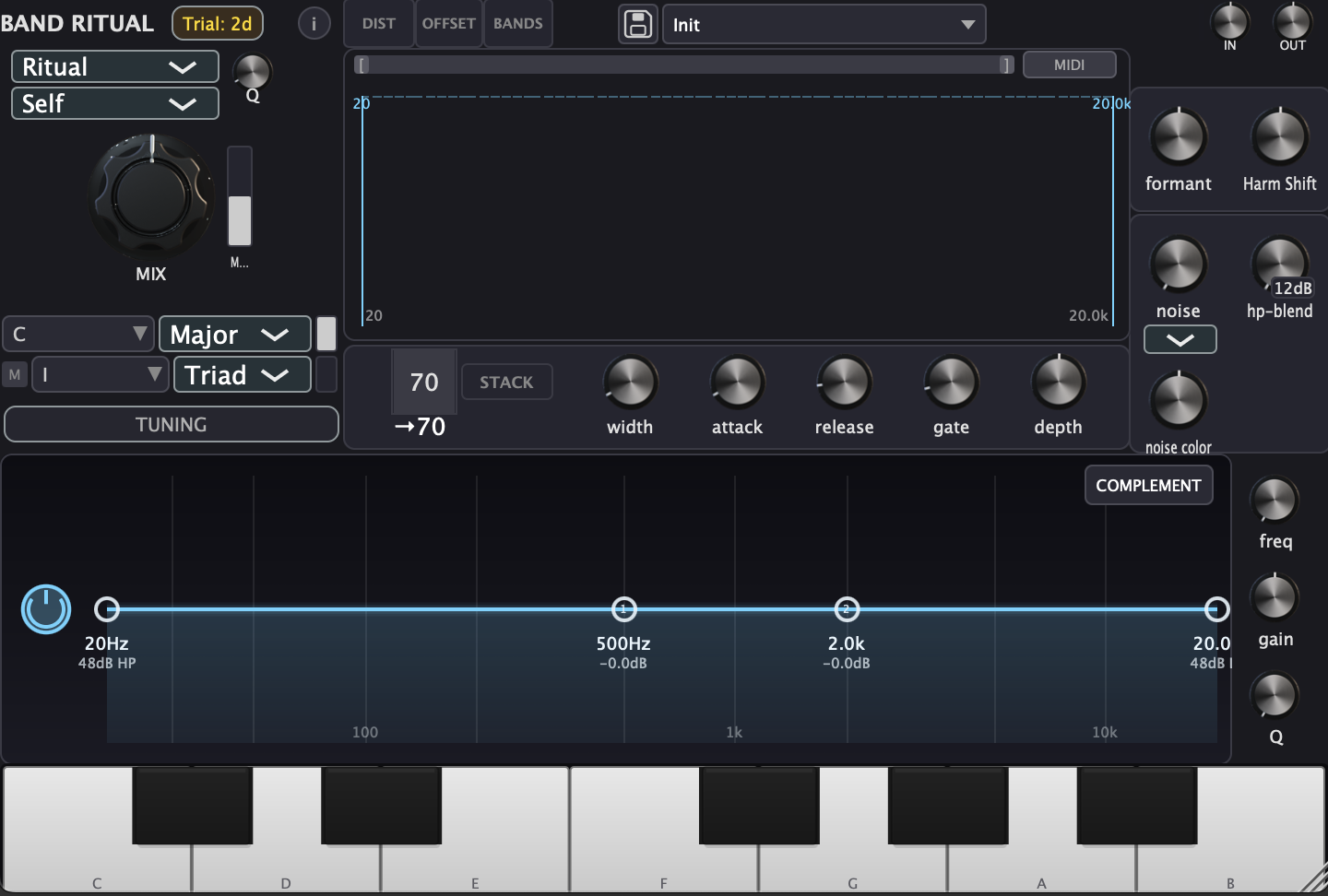
Get your first vocoded sound in under a minute. This walkthrough uses the default Self carrier, which re-synthesises your input through the harmonic grid.
Width 0.2, Attack 1 ms, Release 20 ms, 40+ bands, STACK off. Responds tightly to transients.
Width 0.4, Attack 10 ms, Release 200 ms, 20 bands, STACK on. Smooth, sustained tones that bloom.
The top-left corner of Band Ritual holds two critical dropdowns that shape the fundamental character of your vocoder sound. The algorithm selector sits on top, with the carrier selector directly below it.
The algorithm determines how the analysis and resynthesis bands relate to each other.
| Algorithm | Behaviour | Character |
|---|---|---|
| Ritual | Uses a fixed analysis Q — the resynthesis Q follows the width control independently | The signature Band Ritual sound. Tight analysis with flexible resynthesis width |
| Linked | Analysis and resynthesis share the same Q value | Classic vocoder behaviour — width changes affect both stages equally |
| Split | Separate Q controls for analysis (Modulator Q) and resynthesis | Maximum flexibility — fine-tune each stage independently |
Visible in Split mode, the Q knob (next to the dropdowns) sets the analysis filter sharpness. Higher Q means each band responds to a narrower slice of the input spectrum. Range: 1.0–60.0.
The carrier is the sound source that gets reshaped by your input signal's spectral envelope. Band Ritual offers six options:
| Mode | Source | Best For |
|---|---|---|
| Self | Uses your input as both the analyser and the carrier | Self-vocodering — reshaping a sound through its own harmonic grid |
| External | Sidechain input from another track | Classic vocoder: voice controls a synth, guitar shapes a pad, etc. |
| Noise | Built-in noise generator | Whispered, breathy textures — great for ambient pads and transitions |
| Saw | Sawtooth oscillator (responds to MIDI) | Bright, harmonically rich vocoder tones — play chords via MIDI |
| Square | Square wave oscillator (responds to MIDI) | Hollow, woody character — play chords via MIDI |
| Pitch Track | Sawtooth oscillator following the input pitch | Auto-tracking vocoder that follows melodic content |
The horizontal strip across the middle of the interface holds all the core vocoder parameters.
Sets how many frequency bands the vocoder uses, from 1 up to 100. More bands give a smoother, more detailed response. Fewer bands create a more stylised, stepped character.
The number displayed below the count (with an arrow, e.g., →70) shows how many bands are actually active after deduplication — when multiple bands snap to the same scale note, Band Ritual merges them unless STACK is on.
Controls how wide each band's frequency window is. Range: 0.1 (razor-thin) to 2.0 (very broad).
When your scale and band count push multiple bands to the same note, STACK changes what happens:
These control how quickly each band's envelope responds to changes in the input signal.
| Parameter | Range | Default | Effect |
|---|---|---|---|
| Attack | 0 – 100 ms | 1 ms | How fast bands open when energy arrives. Low values = snappy, high = gradual fade-in |
| Release | 0 – 1000 ms | 30 ms | How fast bands close when energy drops. Low = tight, high = sustaining trails |
Sets a noise floor threshold. Bands below this level are silenced, keeping quiet moments clean. Range: 0–100 (0 = off). The gate range is 40 dB of attenuation, so closed bands are effectively silent.
Controls how strongly the input's spectral shape is imposed on the carrier. Range: 0–200 % (default: 100 %).
Input gain for the modulator (analysis) stage. Range: 0–200 %. Boost a quiet input or tame a hot one before it hits the band analysis. Does not affect the carrier signal.
The large central display shows your vocoder bands in real-time. By default it shows all bands as vertical bars — the classic vocoder view. Three editor modes are available via the tabs at the top: DIST, OFFSET, and BANDS. Press D, O, or B to switch, and Esc to return to the default view.
The standard vocoder visualisation. Every band appears as a vertical bar, with its height showing the current envelope level. You see the full spectrum at once — ideal for monitoring overall activity.
Opens an interactive curve editor that controls how bands are spaced across the frequency range.
Opens an interactive curve editor that controls how carrier band frequencies are shifted relative to their analysis frequencies.
Two draggable cyan lines in the display mark the low and high frequency boundaries of the vocoder. Drag them to set where the bands start and end.
| Parameter | Range | Default |
|---|---|---|
| Low Freq | 20 – 500 Hz | 20 Hz |
| High Freq | 2,000 – 20,000 Hz | 20,000 Hz |
Press B or click the BANDS tab to enter a completely different view: a scrollable carousel that lets you focus on one band at a time and control its Q and gain individually.
This is what sets Band Ritual apart from other vocoders. Most vocoders let you adjust band gains — that's standard. Band Ritual gives you per-band Q control: the ability to set how wide or narrow each individual band's resonance is.
Instead of showing all bands at once, the BANDS view displays a single band in the centre with neighbouring bands visible on either side in a 3D perspective layout. The current band's note name (e.g., C, F#, A) is shown as you scroll.
With a band in focus at the centre:
No other vocoder gives you this level of control. With per-band Q you can:
At the bottom of the BANDS view, 12 note buttons (C, C#, D, D#, E, F, F#, G, G#, A, A#, B) let you filter which bands appear in the carousel:
From the default view, hold Option (Alt) and drag from the band display to export the current band frequencies as a MIDI file. Each band becomes a MIDI note, with velocity reflecting the band's gain level. Drop the file into your DAW to create melodic content locked to your vocoder's harmonic grid.
Complement Mode is one of Band Ritual's most powerful features. It lets you keep parts of your original signal clean and untouched while the vocoder processes the rest.
In a standard vocoder, the Mix knob is all-or-nothing across the full spectrum. Turn it up and everything gets vocoded — including your low-end weight and high-end clarity. Turn it down and you lose the effect.
Complement Mode breaks the mix into frequency zones. You choose which frequencies get vocoded and which pass through clean. The most common use: keep your sub frequencies intact while the mids and highs get the full vocoder treatment.
Click the COMPLEMENT button (located at the right edge of the band display). The EQ display will update to show two curves:
This is Complement Mode's headline feature. When you raise the high-pass filter (Low Cut) in Complement Mode, everything below that frequency passes through your original signal — clean and unprocessed.
Works the same way at the top end. Lower the High Cut and everything above it passes through clean. The High Level knob controls its volume (±12 dB). Unlike the sub, the high complement follows the Mix knob for natural blending.
Complement Mode adds two bell-shaped EQ controls (labelled W1 and W2 on the display) that work differently from the regular Bell EQ. These bells control the wet/dry balance at specific frequencies.
This is the opposite of a regular EQ. You're not making things louder or quieter — you're choosing what gets vocoded and what stays clean at each frequency.
| Bell | Default Freq | Gain Range | Q Range |
|---|---|---|---|
| W1 | 1,000 Hz | ±18 dB | 0.1 – 10.0 |
| W2 | 4,000 Hz | ±18 dB | 0.1 – 10.0 |
A step-by-step recipe for the most popular Complement setup:
Band Ritual snaps its vocoder bands to musical intervals, keeping the output harmonically locked to your track. The scale and chord controls sit on the left side of the interface.
Sets the root note: C, C#, D, D#, E, F, F#, G, G#, A, A#, B. All band positions are calculated relative to this root.
Fifteen scales are available:
The Scale Amount blends between a natural (unsnapped) vocoder and full scale-snapping. At 0 %, bands sit at their mathematically even positions. At 100 %, every band snaps to the nearest scale tone.
Selects a chord degree within the current scale: I, ii, iii, IV, V, vi, vii. The Chord Amount knob blends between using all scale tones (0 %) and restricting bands to only the notes in that chord (100 %).
Changes the voicing of the selected chord:
| Variation | Notes |
|---|---|
| Triad | Root, 3rd, 5th (major, minor, or diminished depending on degree) |
| Power | Root + 5th only |
| 7th | Triad + 7th interval |
| 9th | 7th chord + 9th interval |
| sus2 | Root, 2nd, 5th |
| sus4 | Root, 4th, 5th |
| add9 | Triad + 9th (no 7th) |
Accessed via the MIDI button in the top bar (next to the preset browser):
The right side of the interface holds controls for shaping the spectral character beyond the core vocoder.
Shifts all the vocoder band positions up or down by a fixed amount, measured in semitones. Range: ±24 semitones (two full octaves in either direction).
A continuous pitch shift applied to the output. Range: ±12 semitones. Unlike Formant (which moves band positions), Harmonic Shift transposes the resynthesised output. Use it for subtle detuning or octave effects.
Adds a noise component to the vocoder output, useful for restoring breathiness, consonants, or adding texture. Range: 0–100 %.
| Mode | Behaviour |
|---|---|
| Auto | Automatically selects Vocal or Synth based on the carrier mode. External carrier uses Vocal; internal oscillators use Synth. |
| Vocal | Noise reacts strongly to the input signal — emphasises sibilants and consonants for speech intelligibility |
| Synth | Noise is more constant, adding a steady layer of texture regardless of input dynamics |
Shifts the noise spectrum. Range: −1.0 to +1.0.
Mixes in a high-pass-filtered version of the original input. Range: 0–100 %. This pulls high-frequency detail (sibilants, consonants, transients) from the original signal and layers it over the vocoder output.
The HP Slope dropdown sets the filter steepness: 12, 24, or 48 dB/oct. Steeper slopes keep more of the lows out, isolating only the crispiest high-frequency content.
The bottom section of the interface shows a full-featured EQ display with draggable handles for shaping the signal before it reaches the vocoder.
Removes low frequencies from the input. Drag the left handle or use the control.
| Parameter | Range | Default |
|---|---|---|
| Frequency | 20 – 500 Hz | 20 Hz |
| Slope | 6, 12, 24, 48, 72, 96 dB/oct | 48 dB/oct |
| Resonance Gain | ±18 dB | 0 dB |
| Resonance Width | 0.5 – 10.0 | 1.25 |
Removes high frequencies. Drag the right handle or use the control.
| Parameter | Range | Default |
|---|---|---|
| Frequency | 1,000 – 20,000 Hz | 20,000 Hz |
| Slope | 6, 12, 24, 48, 72, 96 dB/oct | 48 dB/oct |
| Resonance Gain | ±18 dB | 0 dB |
| Resonance Width | 0.5 – 10.0 | 1.25 |
Two parametric bell EQ bands for surgical frequency shaping. These affect the input signal before it enters the vocoder, so changes here reshape what the vocoder analyses.
| Parameter | Bell 1 Default | Bell 2 Default | Range |
|---|---|---|---|
| Frequency | 500 Hz | 2,000 Hz | 20 – 20,000 Hz |
| Gain | 0 dB | 0 dB | ±18 dB |
| Q | 1.25 | 1.25 | 0.1 – 10.0 |
Each bell has its own enable toggle. Click the bell handle on the EQ display or toggle via the controls. Drag handles to adjust frequency and gain visually.
The interactive display shows the combined frequency response of all active filters. All handles are draggable:
The main wet/dry blend. Range: 0–100 %. At 0 % you hear only the original signal; at 100 % only the vocoder output. Default: 50 %.
Trims the input level before any processing. Range: ±24 dB. Use this to hit the vocoder at the right level without changing your channel fader.
Trims the final output level after all processing. Range: ±24 dB. Useful for gain-matching the vocoded signal with your bypassed signal.
Completely bypasses all processing. The input passes through unaffected. Toggle via the plugin header or your DAW's plugin bypass.
Band Ritual supports custom tuning systems, letting you move beyond standard 12-tone equal temperament. Access the microtuning panel by clicking the TUNING button below the scale controls.
Sets the reference frequency for the A above middle C. Range: 420–460 Hz, default: 440 Hz. All band positions are calculated from this reference.
Each of the 12 pitch classes (C through B) has an independent cent offset. Range: ±100 cents (one semitone in either direction).
This lets you create custom temperaments — just intonation, Pythagorean tuning, or anything in between. Offsets apply to all octaves of that pitch class simultaneously.
For advanced tuning systems, Band Ritual can load .scl (Scala) files — the standard format for sharing microtonal scales.
Click the preset name in the header bar to open the preset menu. The browser supports folders for organising your presets.
| Key | Action |
|---|---|
| D | Toggle DIST (distribution) view |
| O | Toggle OFFSET view |
| B | Toggle BANDS (per-band Q carousel) view |
| Esc | Close any open editor, return to normal view |
| M | Toggle MIDI Chord Trigger mode on/off |
| Cmd+Shift+E | Export a screenshot of the plugin window |
With MIDI Chord Trigger enabled, your computer keyboard becomes a chord controller:
| Keys | Action |
|---|---|
| A S D F G H J | Select chord degree I through VII |
| Q W E R T Y U | Select chord variation (Triad, Power, 7th, 9th, sus2, sus4, add9) |
Band Ritual remembers your last variation choice for each chord degree, so switching between chords recalls your preferred voicing.
You can export the current band frequencies as a MIDI file directly from the band display:
Sweeping the width from 0.2 to 0.5 during a build-up creates a dramatic opening effect as the bands widen and overlap.
Duplicate your track, put Band Ritual on the copy at 100 % wet, and blend to taste. This gives you unlimited control over the wet/dry balance with your mixer fader.
Try running two instances — one with Saw carrier, one with Noise — and blending them. The Saw provides harmonic content while the Noise adds breathy texture.
High gate values create a gated-vocoder effect where only the loudest parts of your signal trigger the bands. Great for rhythmic patterns.
The piano keyboard at the bottom of the interface is more than decoration — it's an interactive pitch-class exclusion tool.
Click any key on the piano to exclude that pitch class from the vocoder output. An excluded note is silenced across all octaves.
If your scale includes a note that clashes with your arrangement, click it to mute it. For example, in C Major you might exclude the B to avoid the tension of the major 7th.
Start with Chromatic scale mode and manually exclude notes to build any scale or mode that isn't in the preset list.
Exclude everything except a root and fifth for a powerful, focused vocoder tone. Or keep only octaves of one note for a single-pitch drone effect.
Quick-reference table of every automatable parameter.
| Parameter | Range | Default |
|---|---|---|
| Mix | 0 – 100 % | 50 % |
| Input Gain | ±24 dB | 0 dB |
| Output Gain | ±24 dB | 0 dB |
| Band Count | 1 – 100 | 16 |
| Width | 0.1 – 2.0 | 0.3 |
| Attack | 0 – 100 ms | 1 ms |
| Release | 0 – 1000 ms | 30 ms |
| Gate | 0 – 100 | 15 |
| Depth | 0 – 200 % | 100 % |
| Mod Level | 0 – 200 % | 100 % |
| Formant | ±24 semitones | 0 |
| Harmonic Shift | ±12 semitones | 0 |
| Noise | 0 – 100 % | 0 % |
| Noise Colour | −1.0 – +1.0 | 0 |
| HP Blend | 0 – 100 % | 0 % |
| Scale Amount | 0 – 100 % | 100 % |
| Chord Amount | 0 – 100 % | 0 % |
| Low Freq | 20 – 500 Hz | 20 Hz |
| High Freq | 2,000 – 20,000 Hz | 20,000 Hz |
| Reference A4 | 420 – 460 Hz | 440 Hz |
| Sub Comp Level | ±12 dB | 0 dB |
| High Comp Level | ±12 dB | 0 dB |
Additional parameters (Bell EQ 1&2, Complement Bells W1&W2, Input Filter resonance controls, Modulator Q, Carrier Pitch, per-note cent offsets) are documented in their respective sections.
Designed and developed by
Ritual Audio Labs
ritualaudiolabs.com